What Is Content://Cz.Mobilesoft.Appblock.Fileprovider/Cache/Blank.Html?
 By Ankita Tripathy
18 February, 2026
Security
By Ankita Tripathy
18 February, 2026
Security
Lately, a lot of people have noticed this odd URI showing up in their Android logs: content://cz.mobilesoft.appblock.fileprovider/cache/blank.html. Maybe you’ve seen it, too. If so, don’t stress about it – you’re definitely not the only one.
This weird string seems to appear everywhere on Android devices, and honestly, it leaves plenty of folks confused about what it even does.
Here’s the real story: Android has a pretty tangled system for letting apps share stuff with each other. That specific URI? It’s just a link to a cached HTML file inside the AppBlock app. There’s nothing shady, just part of how the app works.
If you want to understand this better and how to stop it, keep reading till the end…
What Are Content URIs?

On Android, Content URIs are like special addresses for data that lives inside a Content Provider. They’re not like regular web URLs – they don’t just point to a spot on the internet.
Instead, a Content URI acts more like a secure pass to specific data, whether that’s a photo, a contact, or a row in a database.
This setup lets apps share information with each other without ever exposing the actual file paths underneath.
So, why does this matter?
First, it’s about security. Content URIs add a protective layer over the data’s raw storage. If one app needs to give another app access to something, it can hand over a URI with temporary read or write permissions. Once the job’s done, those permissions disappear.
There’s also the convenience factor. Thanks to ContentResolver, apps can use the same basic commands – create, read, update, delete – on any data behind a Content URI. It doesn’t matter if the data’s in a database, a file, or up in the cloud; the interface stays the same.
And there’s one more thing. Since Android 7.0 (Nougat), the system won’t let you share raw file:// URIs between apps anymore – security again.
So, if you want to share files, you have to use Content URIs, often through something like FileProvider. That’s just how Android keeps things locked down and tidy.
What Is Content://Cz.Mobilesoft.Appblock.Fileprovider/Cache/Blank.Html?
The content://cz.mobilesoft.appblock.fileprovider/cache/blank.html isn’t some virus or glitch. It’s just part of how AppBlock – yes, that productivity app from MobileSoft – does its job.
When you try to visit a website you’ve blocked, AppBlock steps in and reroutes your browser to this blank, local file.
Basically, it’s like a smooth detour, so you don’t end up staring at an ugly error message or, worse, crashing your browser.
You will usually spot this “blank” address in your browser’s history, the address bar, or maybe if you are digging around in system logs. It just means AppBlock did what you asked.
Content://Cz.Mobilesoft.Appblock.Fileprovider/Cache/Blank.Html: Breaking Down The URL
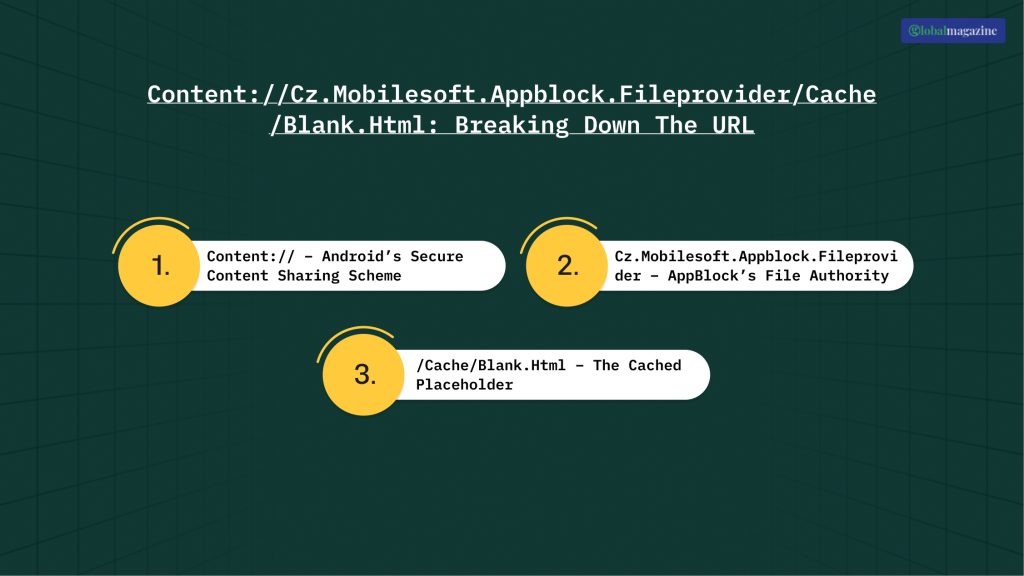
One can basically divide this particular URI into three parts. They are:
- content://
- cz.mobilesoft.appblock.fileprovider
- /cache/blank.html
Now, let us take a look at these three individually to understand what they do:
1. content:// – Android’s Secure Content Sharing Scheme
Back in the day, Android apps could just use file:// to grab files from each other, which, honestly, wasn’t great for privacy. Apps could poke around in someone else’s data, often without you even knowing.
Now, with content://, things are a lot tighter. If one app wants a file from another, it has to ask nicely – and the owner’s app gets to decide if it says yes or no, usually through something called a ContentProvider (just like in the case of FileProvider).
So, every time an app tries to access something, there’s a real, managed process. It keeps apps walled off from each other and has made Android much safer overall.
2. cz.mobilesoft.appblock.fileprovider – AppBlock’s File Authority
That middle bit, cz.mobilesoft.appblock.fileprovider, basically puts a name on who owns the files.
In this case, it’s the AppBlock app, and you will find this set up in its AndroidManifest.xml file.
If you see that in a URI, you know right away which app you are dealing with. Android checks this “authority” to make sure requests go to the right place and follow that app’s own rules.
Only AppBlock gets to say who can open those files. No other apps can just wander in and take a look.
3. /cache/blank.html – The Cached Placeholder
At the end, there’s /cache/blank.html. That’s just a file sitting in AppBlock’s temporary cache – nothing fancy, just a plain HTML file called “blank.html.”
AppBlock swaps it in whenever something gets blocked. So instead of seeing whatever site or app you tried to open, you get this calm placeholder.
It loads quickly, uses almost no data, and keeps things smooth. There’s nothing personal here – just a gentle reminder that something’s been blocked, minus the drama.
Why This URI Appears on Your Device
If you spot content://cz.mobilesoft.appblock.fileprovider/cache/blank.html in your logs or somewhere on your device, there is really no need for you to worry! That’s just AppBlock doing its thing.
You probably tried to open a website or app you’ve already told AppBlock to block, or maybe you tapped on something you’re not supposed to access during a focus session.
Instead of loading what you wanted, AppBlock just flashes a blank page from that address. So, if you see that in your logs, it means AppBlock stepped in and blocked it, no drama, no system crashes. That’s just how the app keeps you on track.
How To Stop Content://Cz.Mobilesoft.Appblock.Fileprovider/Cache/Blank.Html From Appearing?
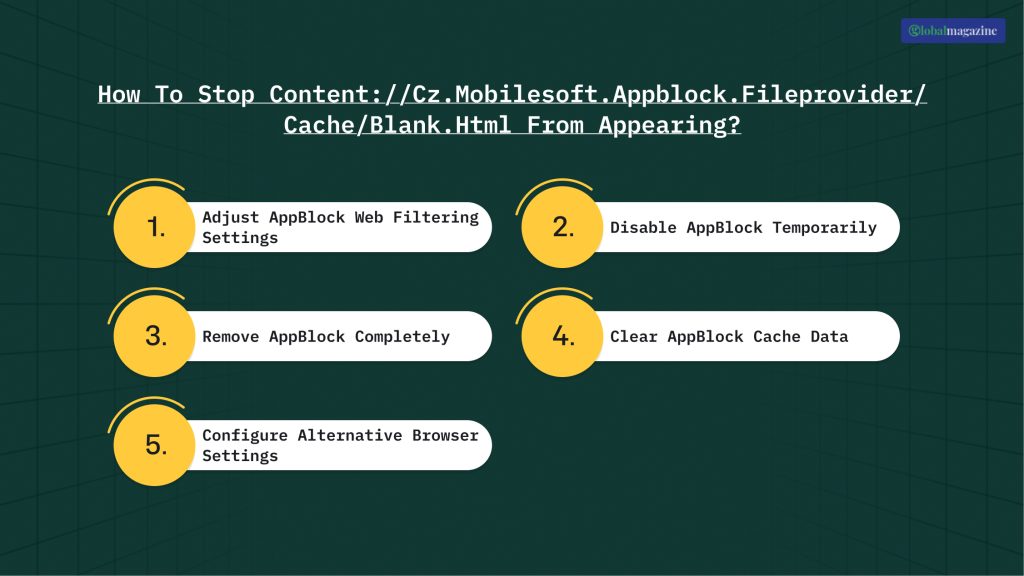
Seeing the content://cz.mobilesoft.appblock.fileprovider/cache/blank.html path isn’t actually an error – there’s nothing broken here.
Still, if that weird URI keeps popping up and you want it gone, there are a few things you can try in AppBlock, or you can just turn the app off completely.
Adjust AppBlock Web Filtering Settings
If you’d rather keep using AppBlock but want to tweak what it blocks, open the app on your Android. Tap the gear icon to get into Settings, then look for Web Filtering or Website Blocking.
Check your blocklist – if you see any sites you don’t care about blocking anymore, just remove them.
If you only want to allow certain sites, you can turn off specific blocking rules instead. Don’t forget to save before you exit.
Disable AppBlock Temporarily
Want to pause AppBlock without uninstalling? Pull down your phone’s Quick Settings and find the AppBlock notification.
If it’s there, long-press it, then hit Pause or Disable. That stops AppBlock from swapping out your web content, so you won’t see that placeholder path in your browser until you turn blocking back on.
Remove AppBlock Completely
If you’re just done with AppBlock altogether, go to your device’s Settings, find Apps, and scroll until you see AppBlock.
All you need to do is:
- Tap it.
- Choose Uninstall.
- Click confirm.
This removes the app and gets rid of the URI for good. If you still want to block distracting sites, there are plenty of other apps out there for Android and Chromebooks that do the same job.
Clear AppBlock Cache Data
Sometimes, cached files are the culprit. To clear them, open Settings, find Apps, tap AppBlock, and go into Storage or Storage & Cache.
Hit Clear Cache. This is something that wipes out temporary files like blank.html, but leaves the app installed. And, please don’t worry, AppBlock will rebuild any files it needs next time you use it.
Configure Alternative Browser Settings
Of course, not everyone wants to use a third-party blocker. If you would rather handle things through your browser, here’s what you need to do:
- Open up Chrome (or whatever you use).
- Go to its Settings.
- Find Site Settings or Privacy and Security.
You can manage website permissions right there – using something like chrome://settings/content gives you pretty fine-grained control.
Switching to browser-based controls means you don’t have to rely on AppBlock at all, and those settings usually play nicely with your device’s built-in security.
In the end, adjusting these options gives you more flexibility and keeps that odd content:// path out of your way while you browse.
Read Also: What Is The Zeromagtech New Console Release Date? [Zero1Magazine Guide]
Content://Cz.Mobilesoft.Appblock.Fileprovider/Cache/Blank.Html Safety: Will The URI Harm My System?
I know that this is something that you might be thinking about. And that’s very natural. But trust me, no. It is nothing harmful. This URI is not an indication of a virus, like I have already mentioned before.
The blank.html file isn’t malware and doesn’t grab any of your data. It’s just a plain page that AppBlock uses when it blocks something.
Thanks to Android’s FileProvider, access is pretty locked down. If some random app tries to open it, Android shuts it out right away.